
A 100% free steel frame design tool in your browser
Which member governs? Is the assigned section larger than it needs to be? What happens to the demand when the profile changes? Frame Studio connects a precise 2D frame model with steel member checks and a catalogue-based sizing search, so those questions can be explored in one workspace.
It is 100% free to use, including steel utilisation checks, automatic sizing, load combinations and force diagrams. There is no paid Frame Studio tier or time-limited trial. Open it on a desktop or laptop, choose your profiles and inspect the governing results.
Model single-span portals, multi-span and multi-storey frames, pitched and single-slope roofs, or trusses with appropriate member-end releases. The tool suits early section selection, independent checks and comparison of alternatives within its stated analysis and design assumptions.
Check steel sections and find the governing utilisation
Assign profiles from the European steel section catalogue, choose their major or weak bending axis, then open Design → Check sections. The design panel evaluates the assigned profiles and displays member utilisation directly on the frame. Select a member to inspect its governing check rather than working backwards from a force-diagram maximum.
Select the relevant load combinations as a set. Each member is checked across those cases to identify the governing result. Checks use concurrent forces at the same location in the same case; independent maximum N, M and V values from unrelated cases are not combined into an invented demand state.
The report exposes the governing case and location, N–V–M demand, section classification, resistance values, interaction equations and member-stability parameters. Pass, Fail and Unverified states distinguish an evaluated result from a case outside the available verification.
The steel checks use the implemented EN 1993-1-1:2005 resistance and member-stability formulations. Review fy, the National Annex safety factors, in-plane frame behaviour, effective lengths and declared out-of-plane bracing. Automatic factors and manual overrides remain visible in the calculation details; the method notes identify unsupported checks and conservative assumptions.
Worked example: check an 8 m HEB portal frame
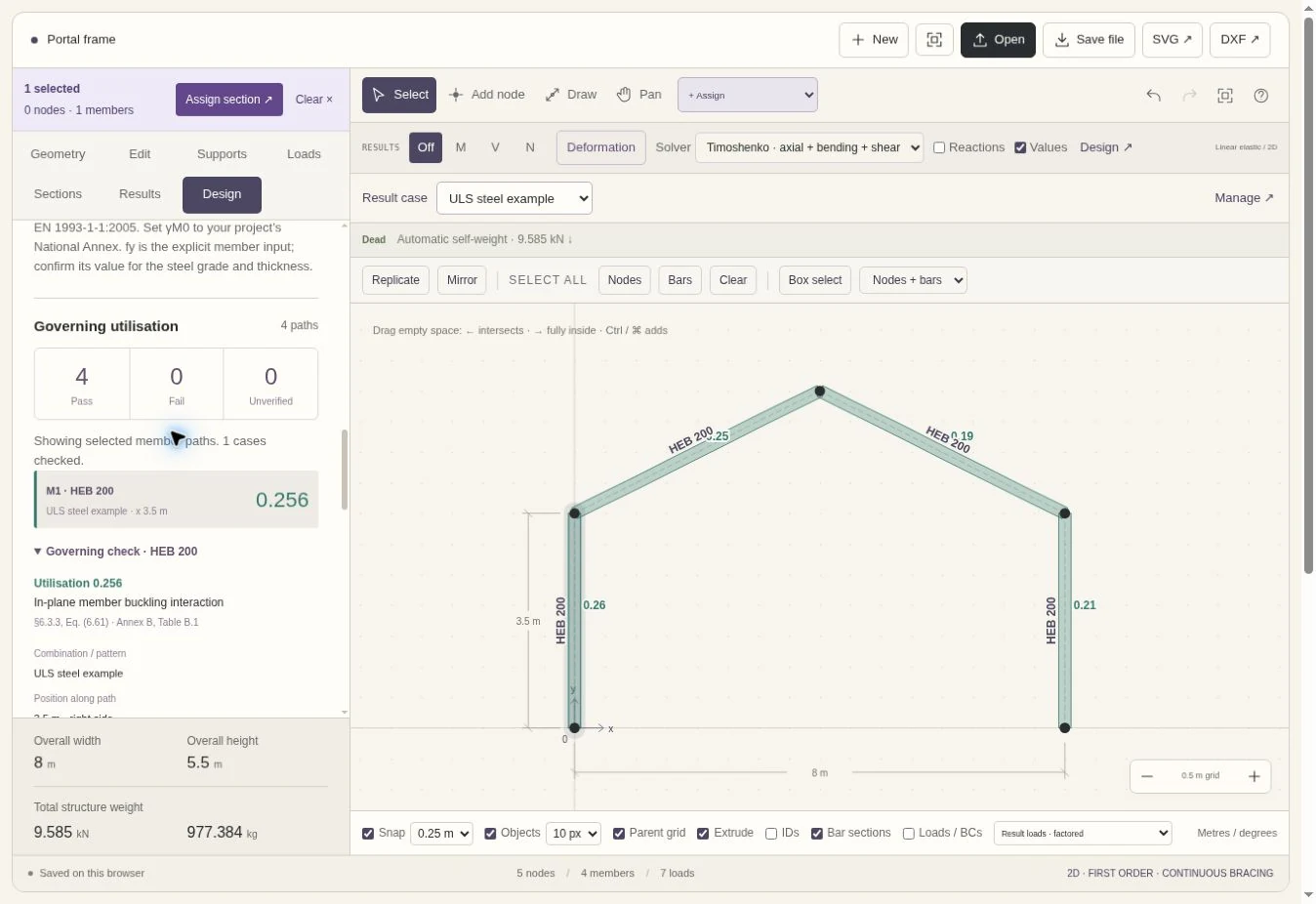
Start with Results → Try a loaded portal example, which replaces the canvas; Undo restores it. Assign HEB 200 to all four members, on the major axis, and add automatic Dead self-weight to the combination. These are the inputs used for the steel-design screenshots:
| Input | Example value |
|---|---|
| Geometry and restraints | 8 m span; 3.5 m eaves; 2 m ridge rise; fixed bases and rigid eaves/ridge joints |
| Initial sections | HEB 200 throughout, major-axis bending; fy = 355 MPa; E = 210 GPa |
| G · Permanent | 5 kN/m vertically downwards on both rafters, per metre of actual member length |
| Q · Imposed | 25 kN downwards at 55% of the left rafter length, measured from the eaves towards the ridge |
| ULS steel example | 1.35 × G + 1.50 × Q + 1.35 × Dead |
| Design assumptions | Sway member-check setting; automatic in-plane factors; continuous lateral and torsional bracing; γM0 = γM1 = 1.0 |
| Analysis | Linear first-order 2D; Timoshenko beam theory |
The initial HEB 200 frame weighs 977.384 kg / 9.585 kN. Its maximum member utilisation is 0.256, governed by the left column’s in-plane member buckling interaction. The bracing and design factors are explicit demonstration assumptions: they must match the actual project before the results can inform a design decision.
Automatically size steel profiles, then reanalyse the frame
Switch to Auto-size, set a target utilisation and choose the search constraints. A sizing group can keep several members on the same profile and axis. Restrict the permitted families, choose major, weak or either axis, and optionally limit section depth or linear mass. Locked groups retain their assigned sections while remaining in the final checks.
For this example, select all four bars and create one sizing group restricted to HEB, major axis. Leave the size limits unrestricted and set the target utilisation to 0.90. Run auto-sizing, review the proposed section set, then choose Apply verified sections. Undo remains available.
The search proposes HEB 140 throughout. After applying it, the four member utilisations are approximately 0.714, 0.566, 0.647 and 0.479, all below the 0.90 target for the selected case. Total weight becomes 537.322 kg / 5.269 kN, compared with 977.384 kg / 9.585 kN before sizing.
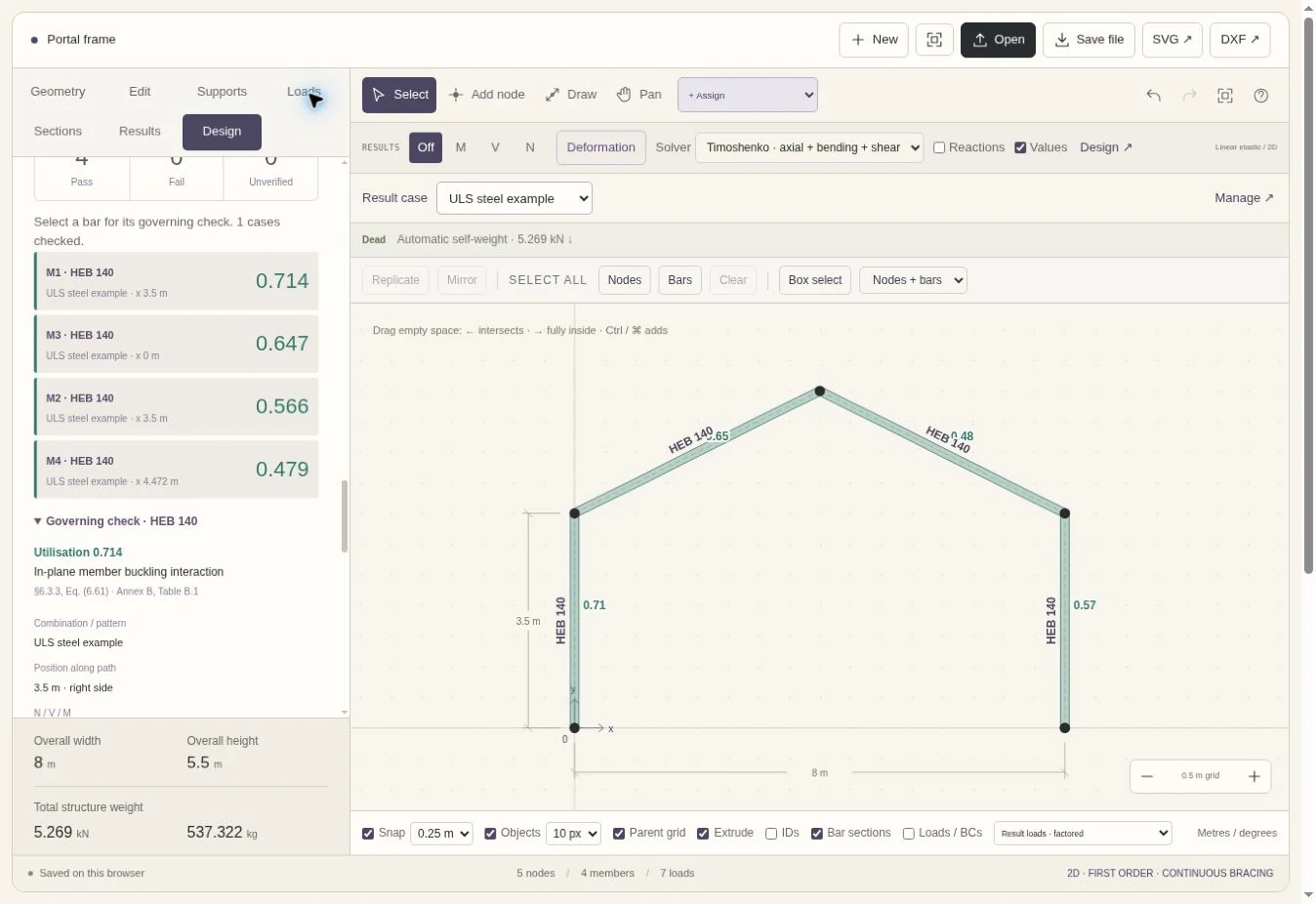
Changing a section changes stiffness and therefore can redistribute forces. Frame Studio reanalyses the frame after section updates and recalculates self-weight during the sizing iterations. The search seeks a low catalogue mass within the chosen constraints; it does not guarantee a global optimum. A target utilisation is not a deflection limit, a global stability check or a substitute for the other project requirements.
Use several design combinations when the frame is subject to different load arrangements. A profile that passes a gravity-only case may be governed by another arrangement, and automatic sizing is only as complete as the cases and constraints selected.
Build a 2D frame with precise dimensions, or import a DXF
Start with a template, draw members or choose New for a blank canvas. Dragging makes geometry changes immediate; numeric length, coordinate and angle fields provide precise control. Driving dimensions can stretch a frame or a saved node group without rebuilding every member.
Selection follows a familiar CAD convention: drag left for a crossing box that selects intersecting members; drag right for a window that selects only fully enclosed elements. Ctrl or Command adds to the selection. Replicate and Mirror help build repeated bays or symmetrical arrangements.
For existing CAD geometry, choose Open → DXF, select the layer containing the frame centrelines, confirm the drawing units and endpoint merge tolerance, then review the preview. Straight lines and straight polylines in an ASCII DXF become members. Shared nodes are created at member ends, crossings and T-junctions, with connected members split at the intersections. Applied loads and supports are not imported. Curves and blocks must be converted to suitable straight entities first.
Assign supports, steel profiles and load patterns
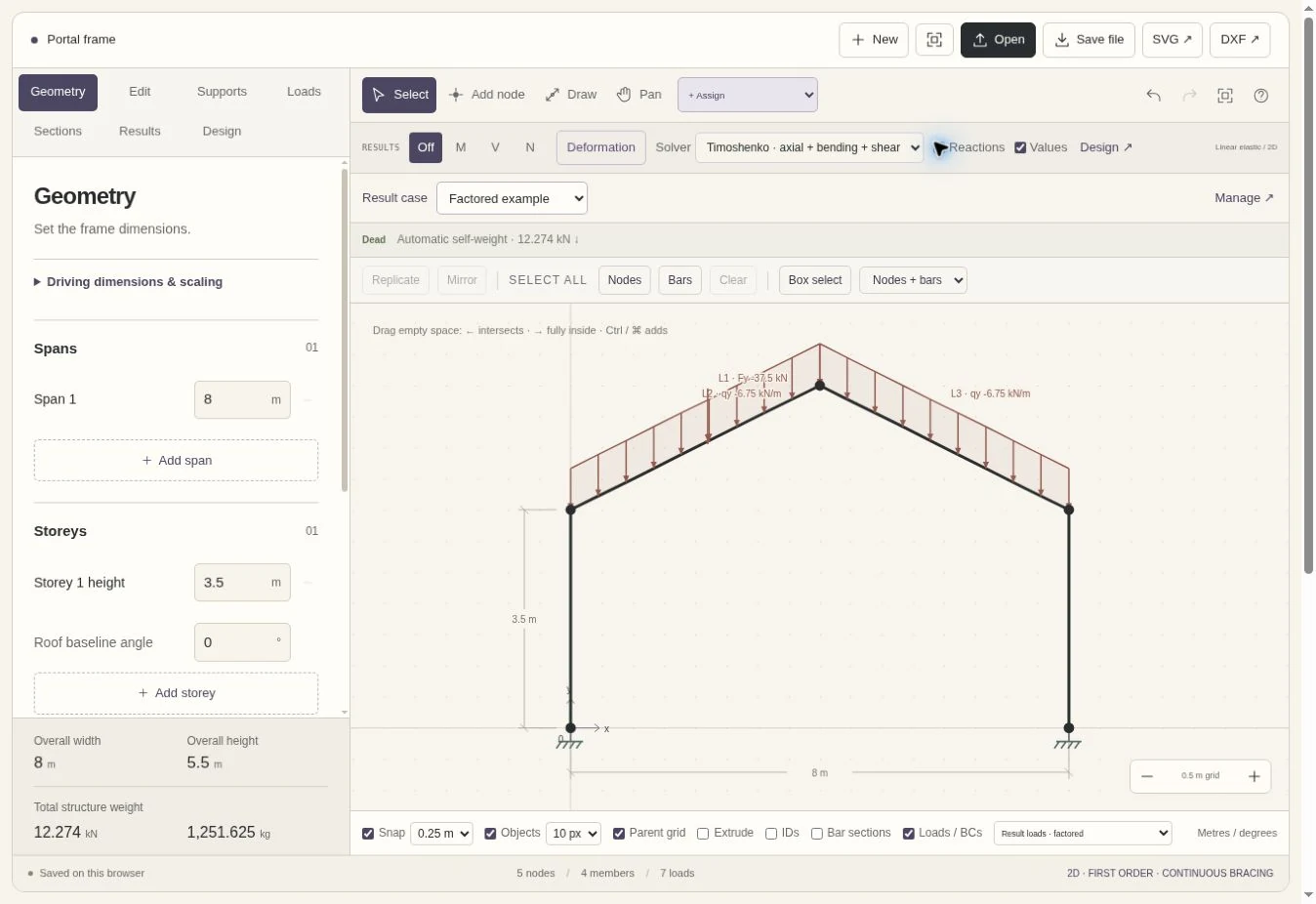
Supports act on nodes, with independent horizontal, vertical and rotational restraints. Member begin and end releases are separate assignments, so a nodal support and a member-end hinge remain distinct modelling choices.
Choose a steel family and commercial profile from the European steel section catalogue, then assign it to the selected bars. The major- or weak-axis setting determines the section properties used in the in-plane solver. The section display can show profile names and draw the assigned depth to scale.
Loads include nodal forces and moments, point loads anywhere along a member, uniform or varying distributed loads, perpendicular pressures and uniform temperature changes. A point load inside a bar does not require a manual partition. Load dialogs make the magnitude and direction explicit, and selected loads can be edited together.
The always-available Dead pattern calculates self-weight from the bars’ linear mass and current lengths. It acts downwards, along gravity, and updates after section or geometry changes. Include Dead in a combination when needed; leaving its factor out excludes it from that combination. Other patterns can represent imposed, wind or thermal actions. The engineer defines the factors and the applicable design cases.
Use force diagrams to understand the steel check
The analysis results support section selection. Use M for bending moment, V for shear and N for axial force, and enable Reactions to inspect the support response. Hover over a member to read its response at a particular location. Moving loads, changing geometry or changing sections updates the analysis.
A deformation plot is also available to inspect movement, with actual displacement labels and a magnified drawing. Review serviceability separately: a passing resistance check or an auto-sized section set does not establish that project deflection limits are satisfied. Always confirm the selected pattern or combination before comparing results.
Understand the limits of a 2D frame analysis
The solver uses linear elastic, first-order, small-displacement 2D analysis. Timoshenko is the default beam theory; Euler–Bernoulli is available when shear deformation is to be neglected. Both include axial and bending stiffness.
The tool does not perform a global 3D buckling analysis, P–Delta analysis or automatic global-imperfection generation. Out-of-plane member resistance checks depend on the bracing assumptions you declare; they do not create a 3D model. The Sway/Non-sway design setting is an assumption for the member checks, not an automatic assessment of global frame stability. Class 4 effective-section design and the other exclusions listed in Design remain outside the available verification.
Confirm connectivity, supports, releases, units, section axes, selected combinations and equilibrium before interpreting any diagram. Use the model only where its assumptions suit the structure and the purpose of the calculation.
Save the editable model and export the frame to DXF
The working model is saved locally in your browser. Use Save file to keep an editable JSON copy or move it between computers; local browser storage is not a shared cloud project archive.
DXF export writes member centrelines to the FRAME_STUDIO layer, in metres. SVG exports the geometry drawing. Keep the JSON file when you need the complete model, including supports, loads, sections and combinations. Undo and Redo remain available while editing.
Continue reinforced-concrete work with Strata and COSA
Frame Studio belongs to the fr.aime labs free tools. For reinforced-concrete work, the wider product range addresses different calculation tasks:
- COSA provides reinforced-concrete section analysis: ULS axial force and biaxial bending resistance, SLS stresses and crack-width checks, interaction envelopes, batch calculations and reports, according to the selected licence.
- Strata supports reinforcement post-processing for reinforced-concrete slabs, rafts and walls represented by planar shell models, including reinforcement assessment, result review and drawing/report exports.
These are separate workflows. Frame Studio does not automatically design concrete reinforcement or transfer a model into either product. When using calculated actions in another calculation, confirm axes, signs, units and the relevant ULS or SLS combination. The guide to governing load combinations for concrete sections explains why checking a set of combinations matters.
Questions about free steel frame design
Is Frame Studio really 100% free?
Yes. The public Frame Studio tool is 100% free, with no subscription or account required. Strata and COSA are separate products with their own plans.
Can I use it on a phone?
The modelling tool is desktop only. Open it on a desktop or laptop with a browser window at least 900 px wide. This guide and its screenshots can be read on a phone.
Can I import a CAD frame without importing loads?
Yes. Import an ASCII XY DXF, choose the frame layer and confirm its units. The import creates geometry and intersection nodes; it does not import applied loads or boundary conditions. Assign those in Frame Studio afterwards.
Can I compare several load combinations?
Yes. Create the patterns and factors you need, then choose the cases used for analysis or member checks. Dead self-weight is included only when the selected case contains it.
Can the tool choose a steel profile for me?
Yes. Auto-size searches supported catalogue profiles within the selected family, axis and dimensional constraints, reanalysing stiffness and self-weight. Review its proposed sections, governing combinations and design assumptions before applying them.
Start with the built-in portal example, check the assigned profiles, then explore a constrained sizing group.